¶ Member Actions
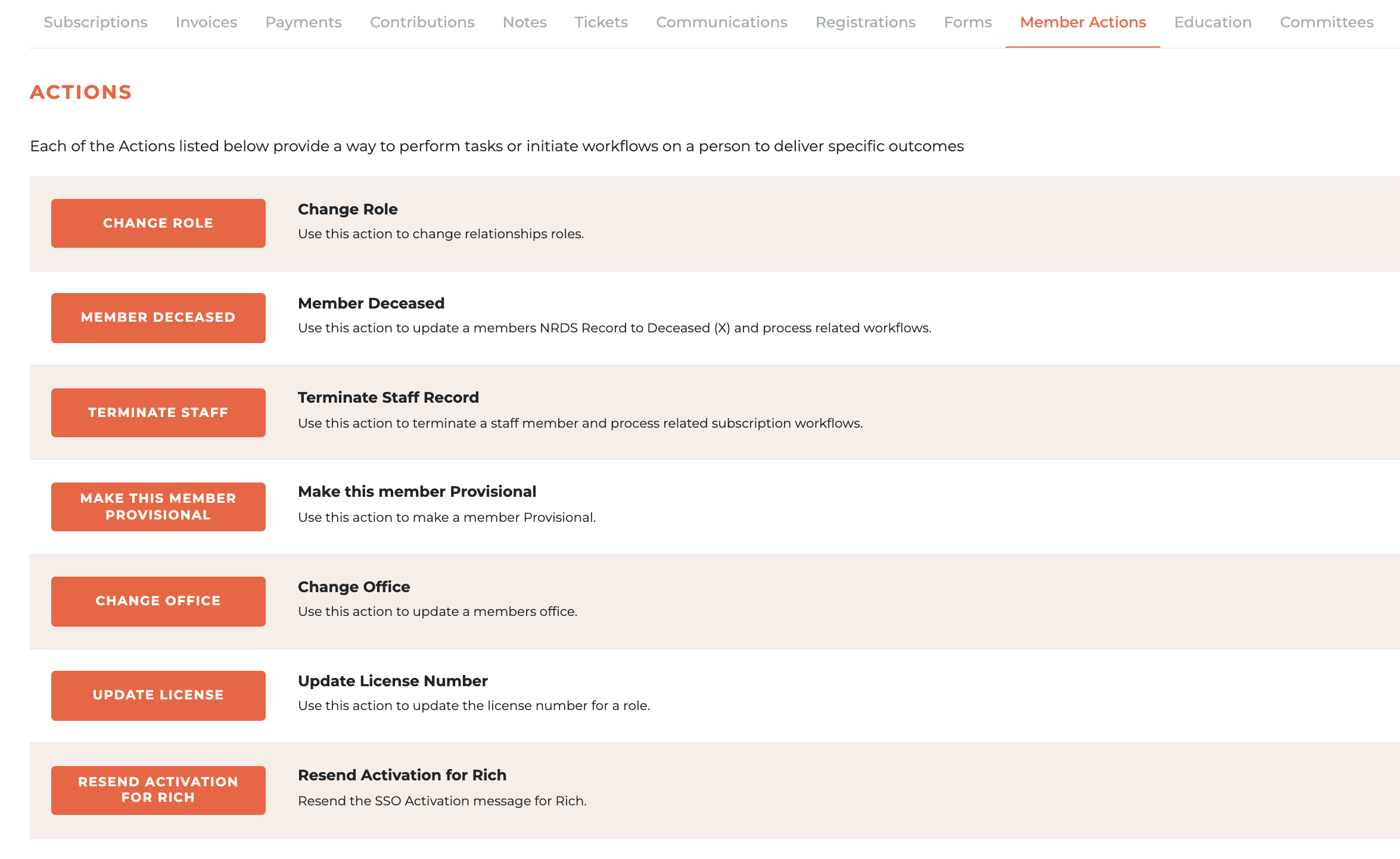
The member actions section allows staff with the appropriate rights to take specific actions against a person record in Tangilla. These are actions that require specific process, but are difficult or impossible to manage via other automated processes. Not all member actons are available for all members or for all associations. These Member Actions are dynamic in that sense, in that they change based on the association and the person record they are associated with. New actions will be added as required and updated here upon release into the application.
¶ Change Role
Use this action to change a relationship's role. This action will only appear on a person record where the ability to change a role exists. For example, it will not appear on a person with a Non Member Education/Event role, their role would need to change by application.
This action requires three steps; Select New Role, Confirm Product and Summary.
¶ Select New Role
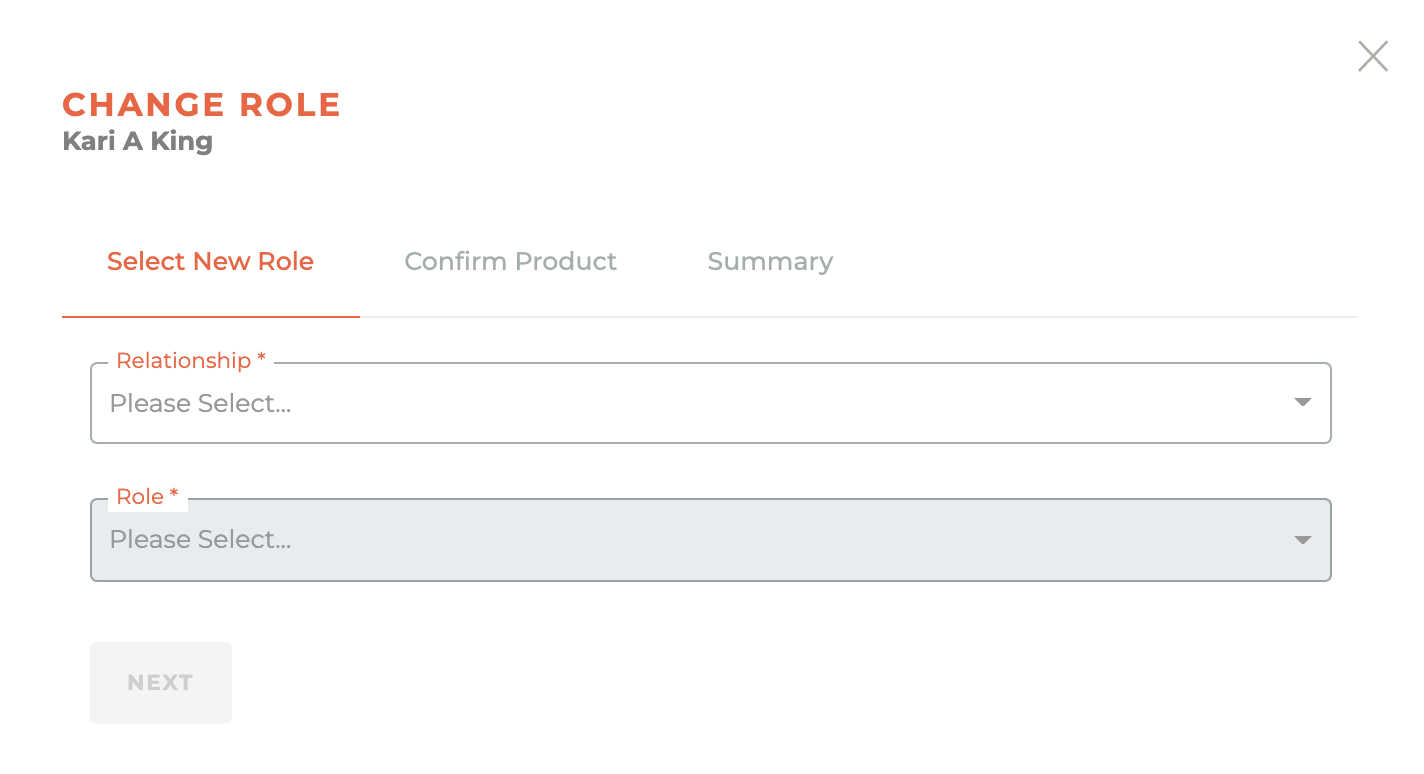
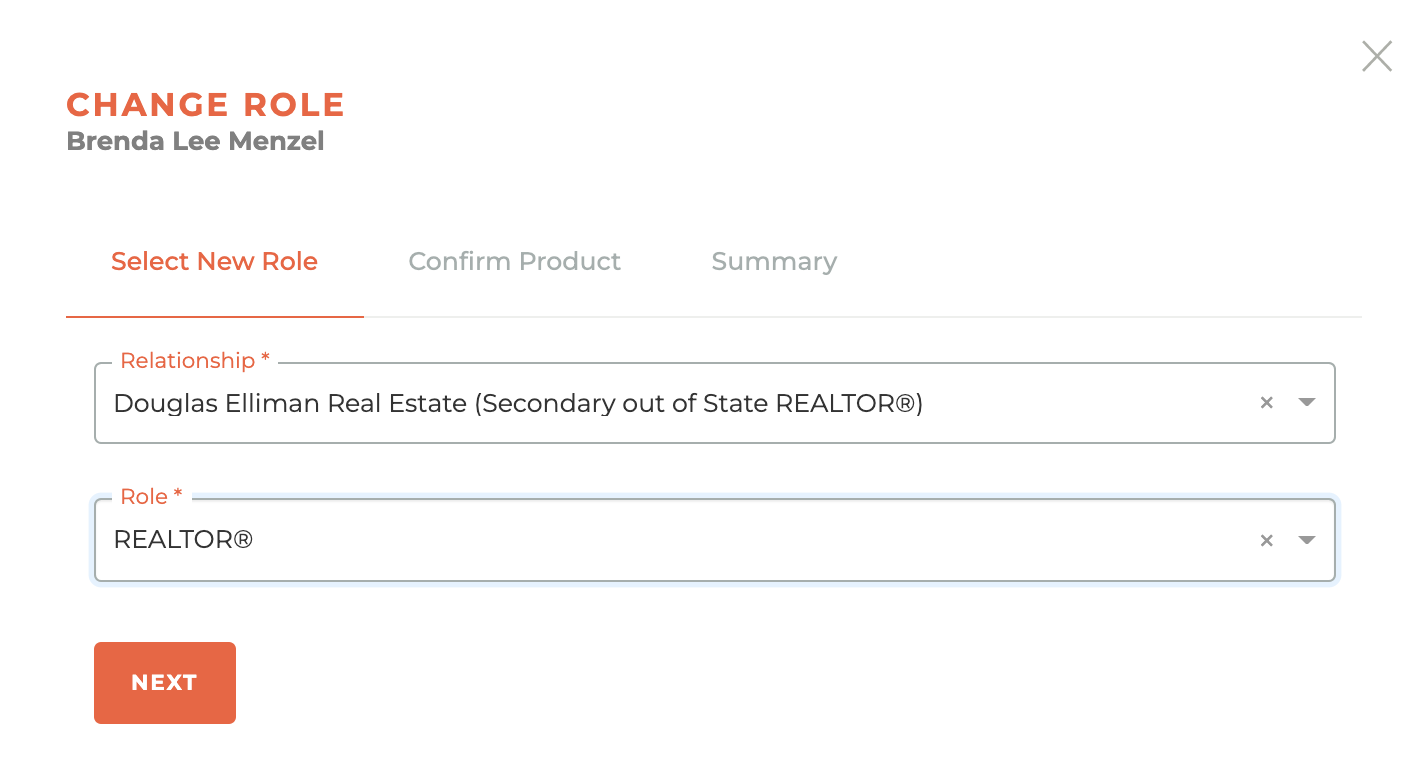
Since a person may have different relationships, you must first select which relationship requires a change.
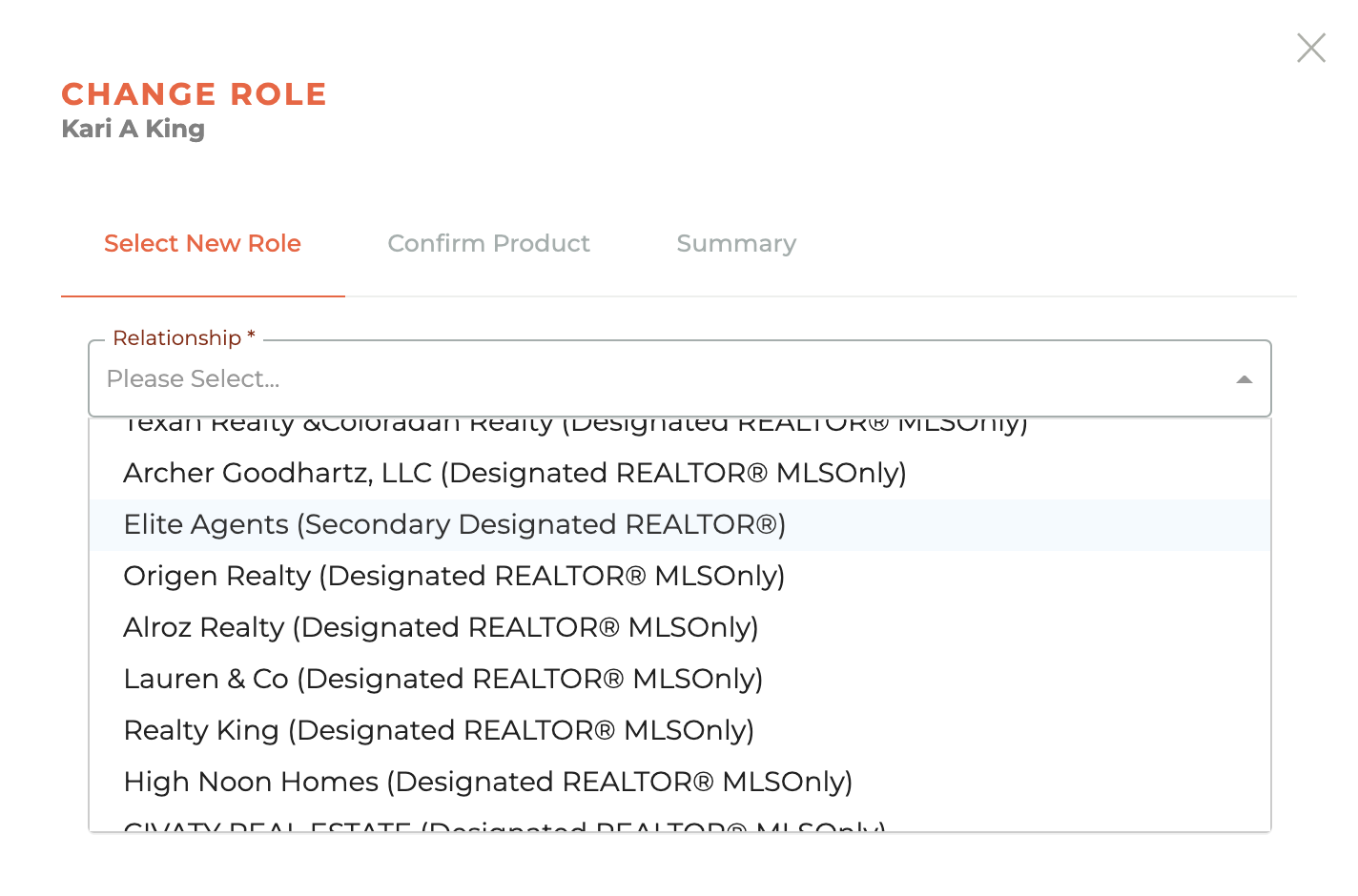
However, for most members, there will be only one relationship available for selection. Once you have chosen the relationship, then choose the role they will be moving into.
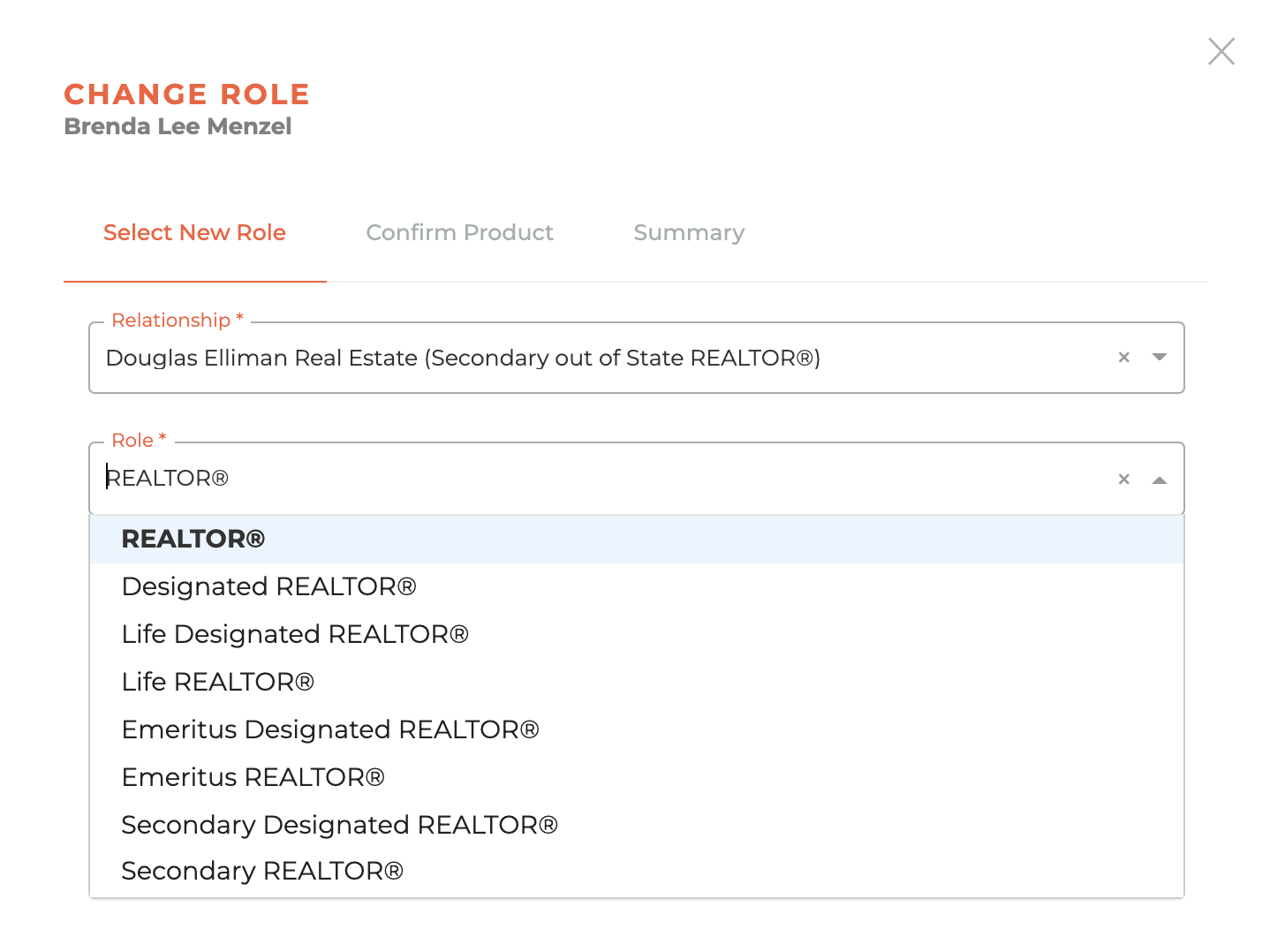
Once you have selected the new role, click next. You will not be able to move forward until both have been selected.
¶ Confirm Product
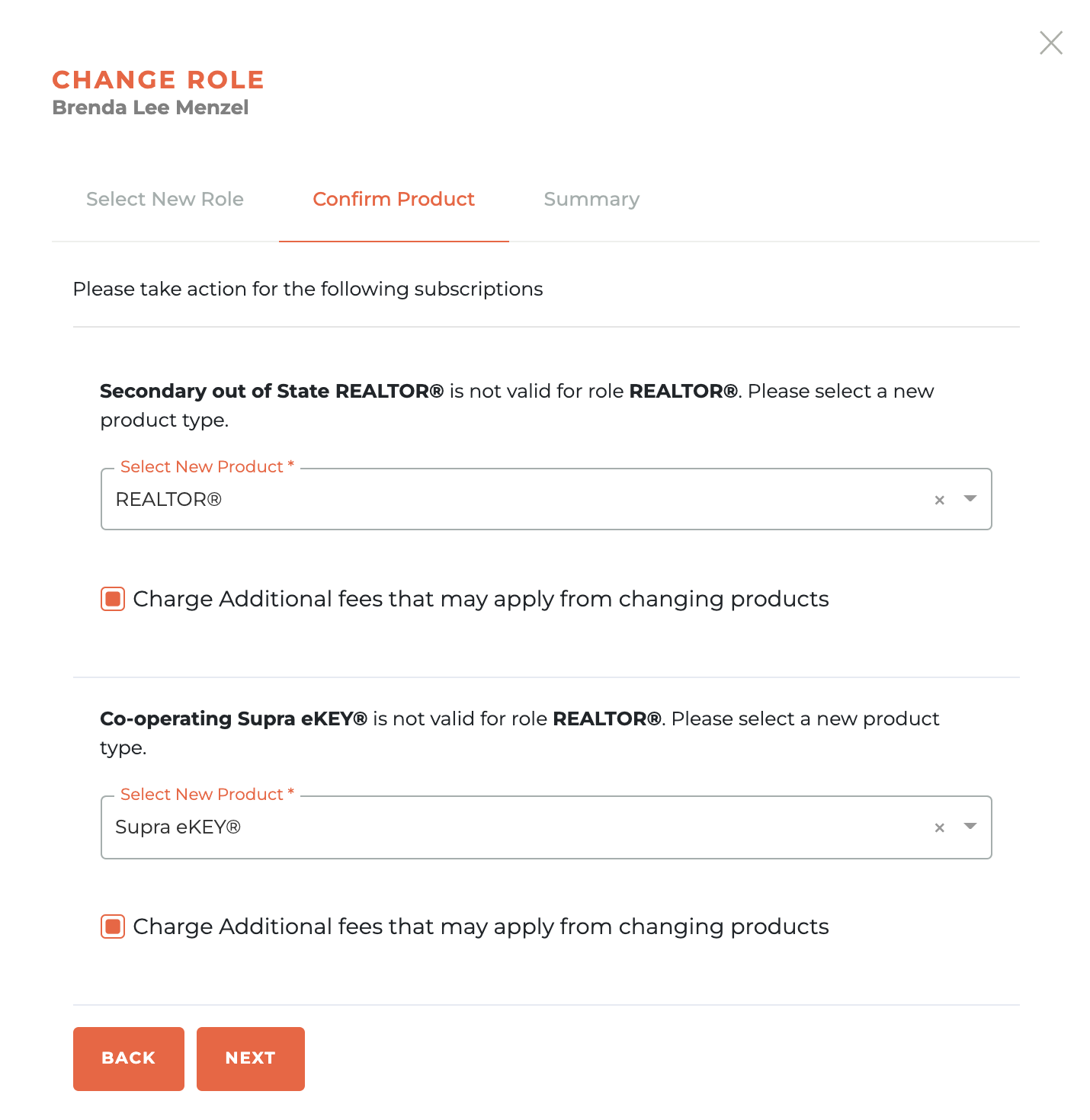
The confirm product screen will allow you to make decisions around how product associated with the role change will be handled. The interface is desiged to walk you through conflicts that may exist between existing products related to the current role and the products related to the new role. You will also be able to decide if you will charge additional fees that may apply from changing products. You will not be able to move to the summary screen until you have completed the required fields.
¶ Summary
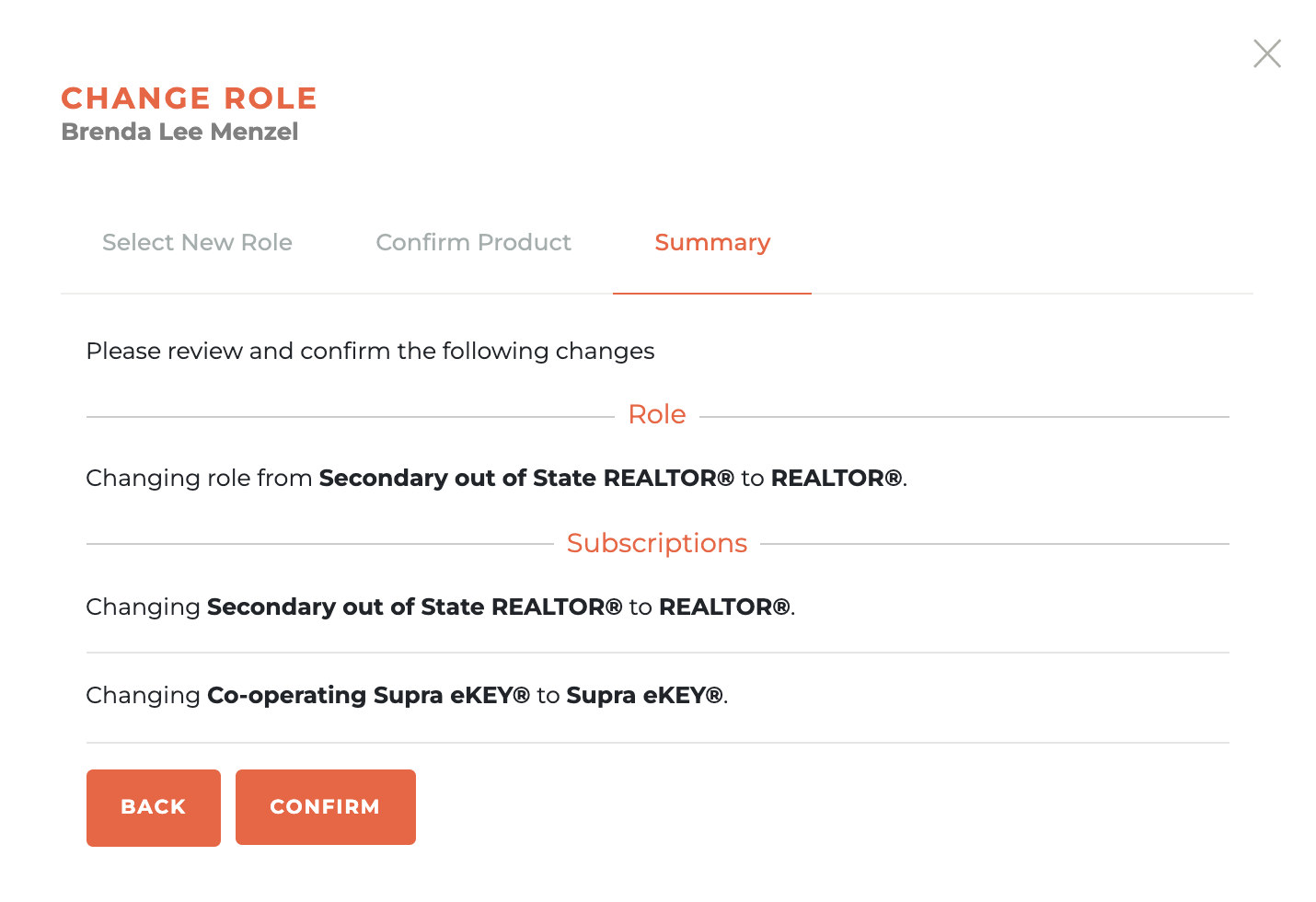
The Summary screen will give you an overview of the changes to be made. When you are satisfied, click the confirm button or go back and make any needed changes. Once confirmed, these changes, including any items that need to be invoiced, will be made immediately.
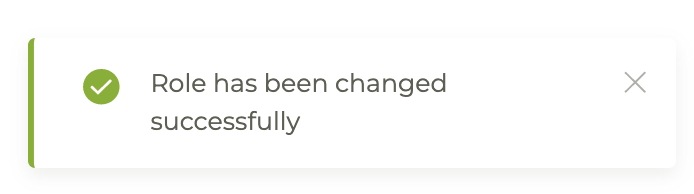
You will see the following success message when the Role Change has been completed.
Warning: A Change Role action can only be undone by another Change Role action.
¶ Member Deceased
Use this action to update a members NRDS Record to Deceased (X) and process related workflows. When you click on the "Member Deceased" button, a warning box will pop up. The record will automatically be changed and the related workflows will run the moment you press confirm.
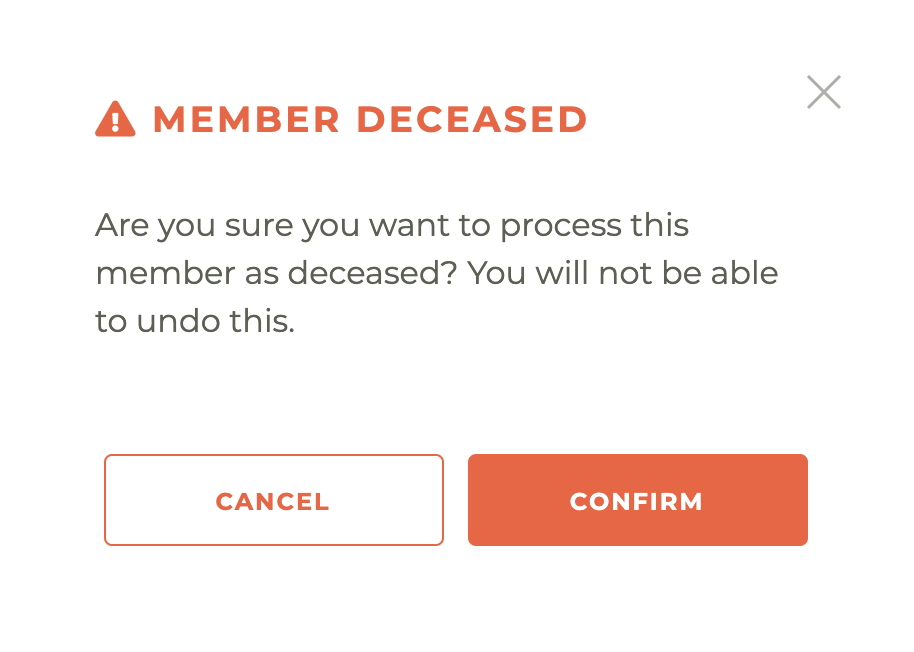
Warning: This action cannot be undone, not even by Tangilla staff.
¶ Terminate Staff Record
Use this action to terminate a staff member and process related subscription workflows. When you click on the "Terminate Staff" button, the Terminate Staff Member window will slide out from the right side of the dashboard. You will then be able to choose the corresponding Tangilla User Account and Clck on the Terminate button.
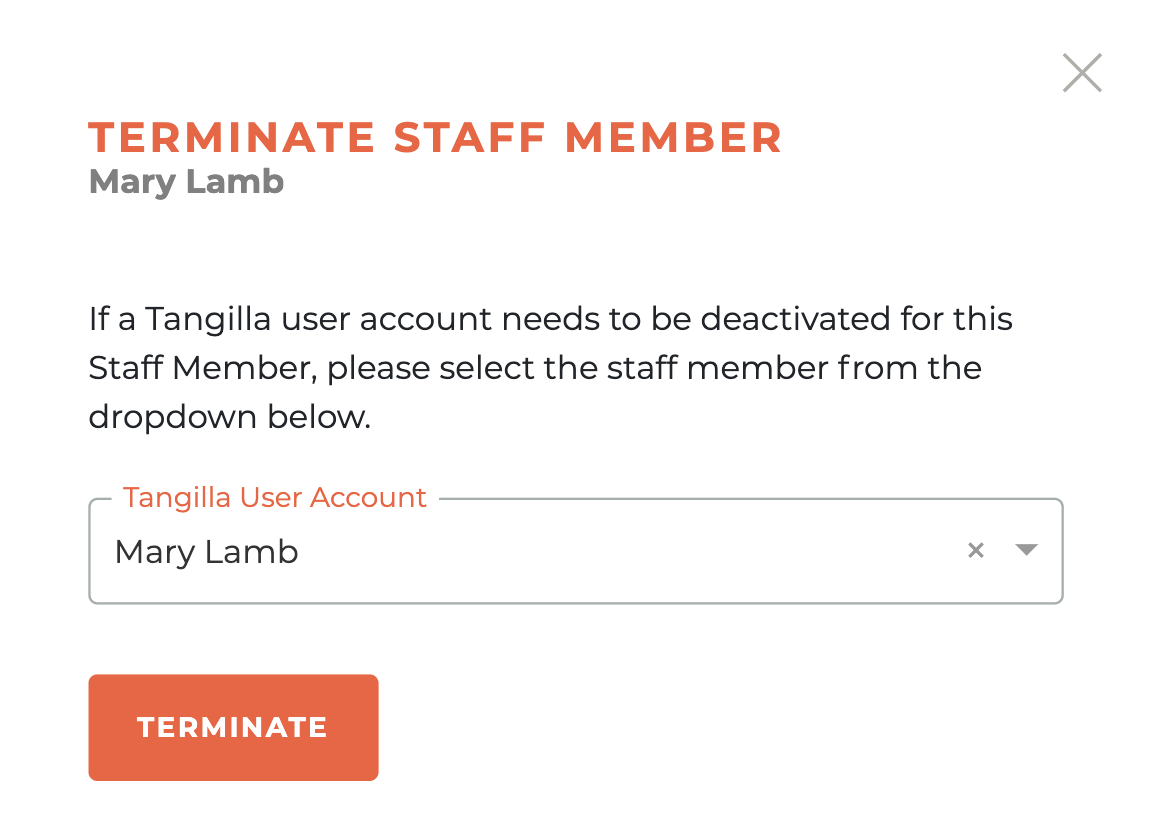
This will cause the Terminate Staff Member warning box to appear. The staff record will be updated and the corresponding processes will run the moment you press confirm.
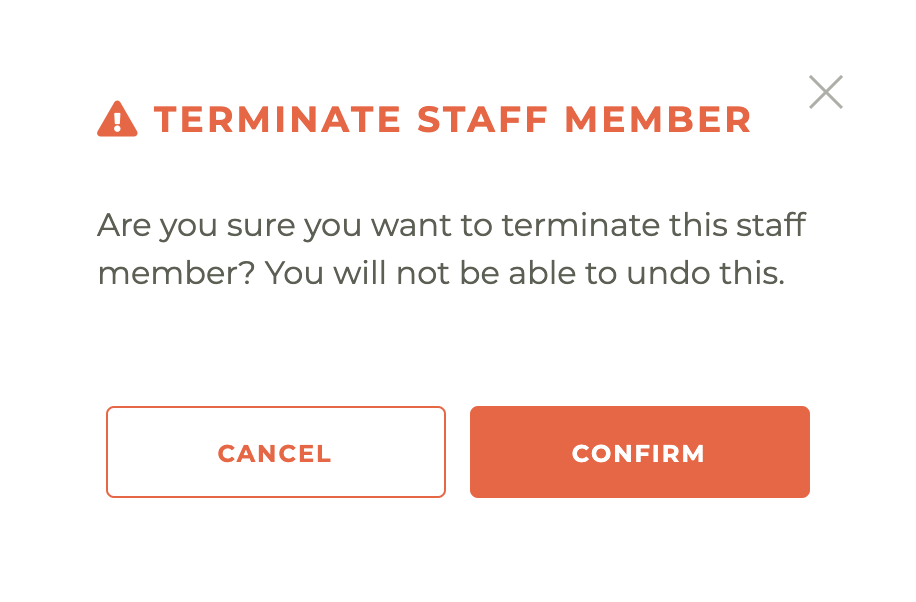
Warning: This action cannot be undone, not even by Tangilla staff.
¶ Make The Member Provisional
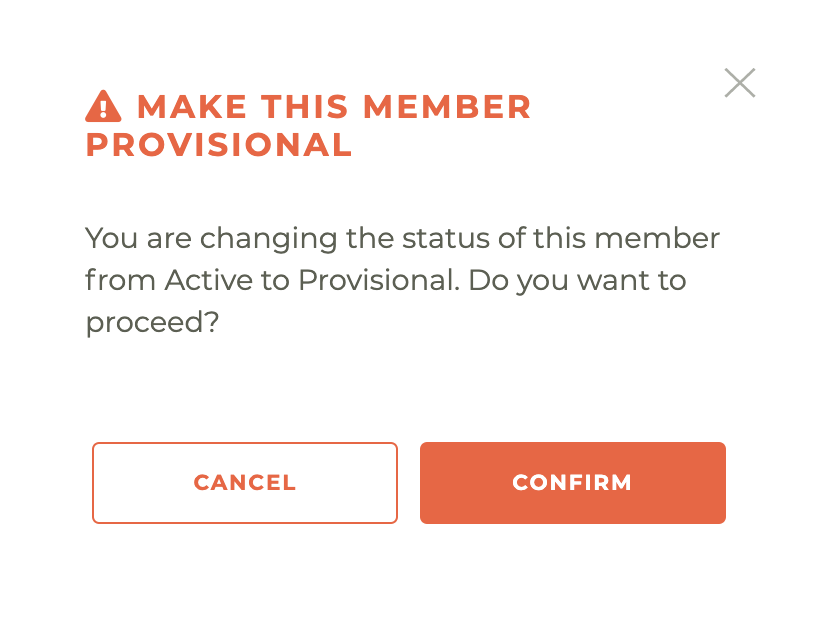
Use this action to make a member Provisional. When you click on the "Make The Member Provisional" button, a warning box will pop up. The record will automatically be changed and the related workflows will run the moment you press confirm. You can undo this action in the member record. This member action may not be available to all associations.
¶ Change Office
Use this action to make move a member to a new office without applying any fees. When you click the Change Office button it will cause the Office Search menu to slide out from the right side of the Member Action dashboard.
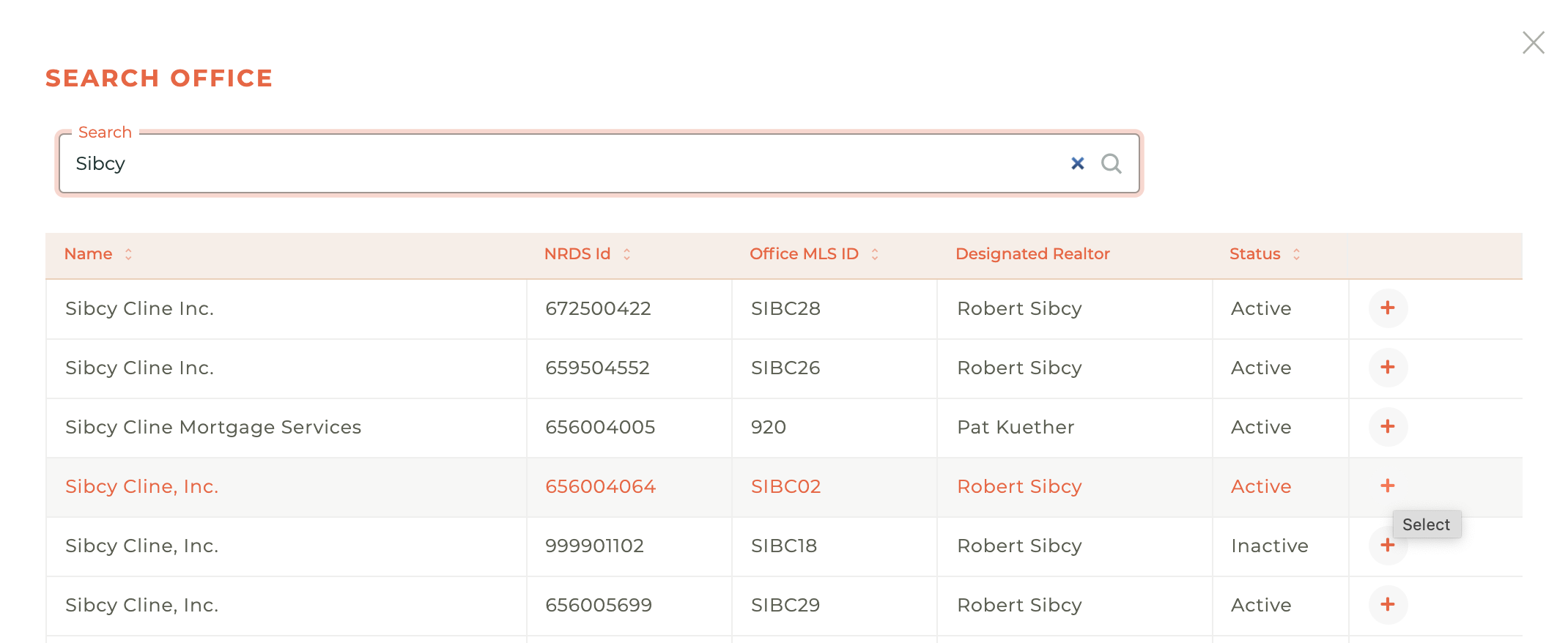
Clicking on the - - icon next to the office you wish to move them to will instantly cause the Change Office verification window to pop up.
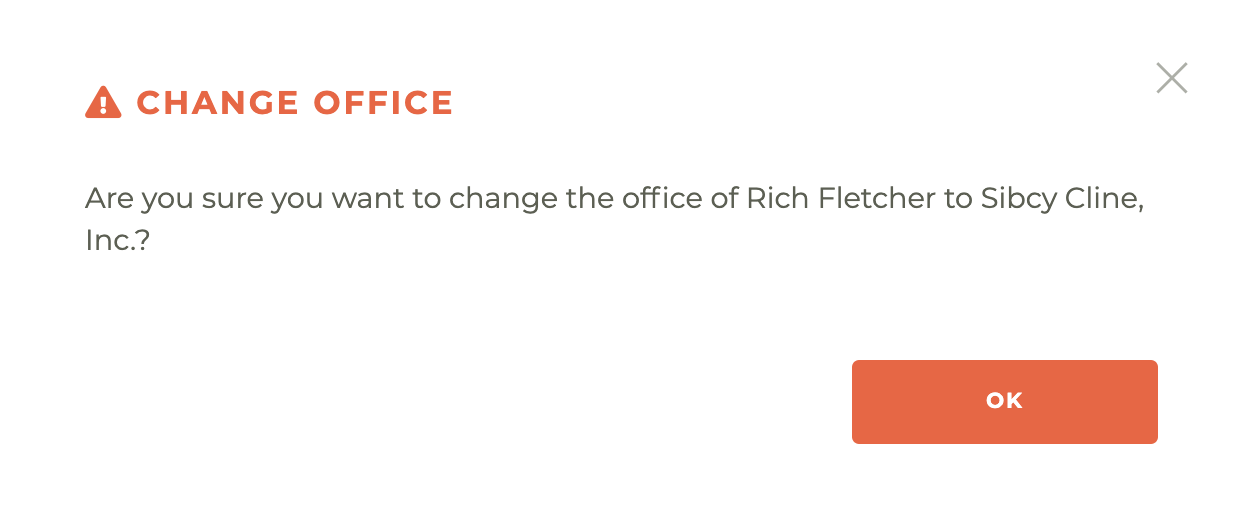
Warning: A Change Office action can only be undone by another Change Office action.
¶ Update License Number
Use this action to update the license number for a role. This action will only accept a valid license in your state, as seen by Tangilla. Once you've chosen the role and input a valid license, the License Name, License Type, License Type and License Status will automatically update. These fields may not be edited. When you are satisfied this is the right license, click update license and the change will be applied immediately.
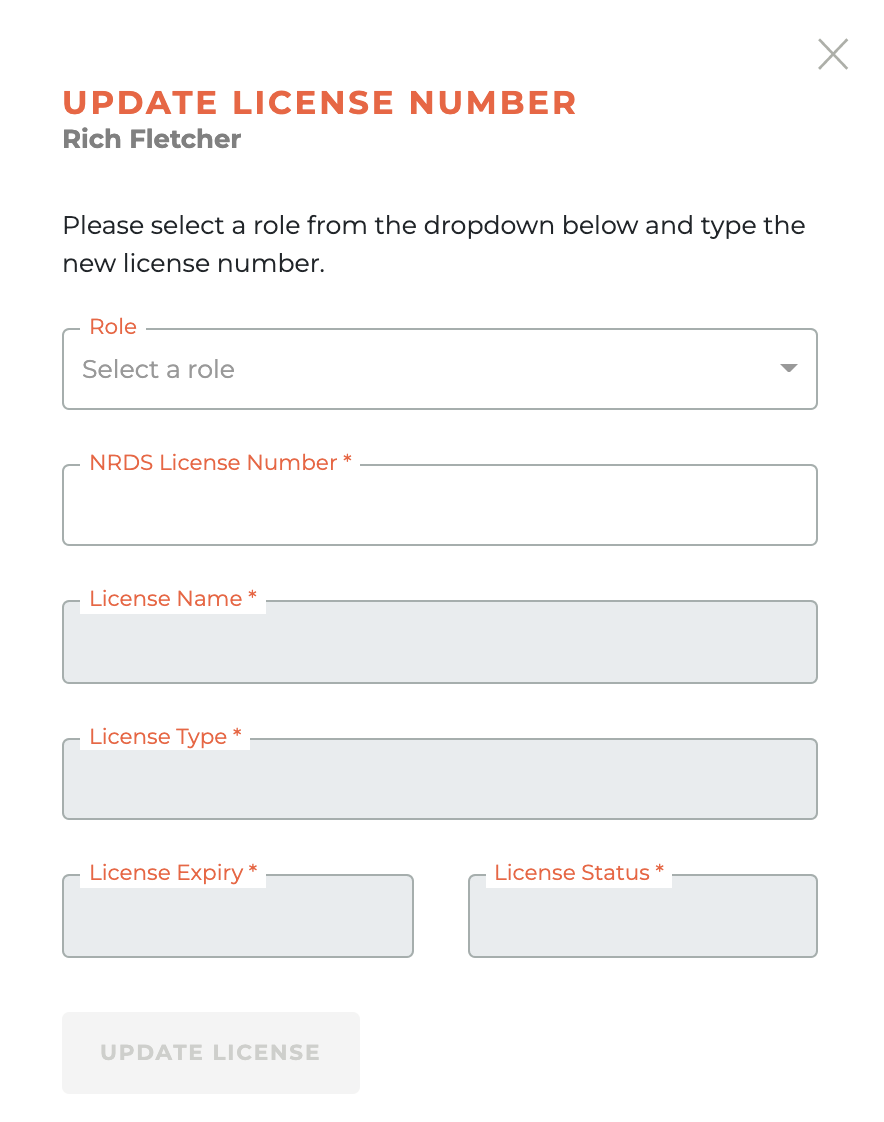
Warning: An Update License Number action can only be undone by another Update License Number action.
¶ Resend SSO Activation For Member
Use this action to resend the SSO Activation message to a member. This is only available to Associations using the Tangilla Single Sign On product. When you click on the "Resent Activation For..." button, a warning box will pop up. Upon confirmation, the activation email will instantly be sent.
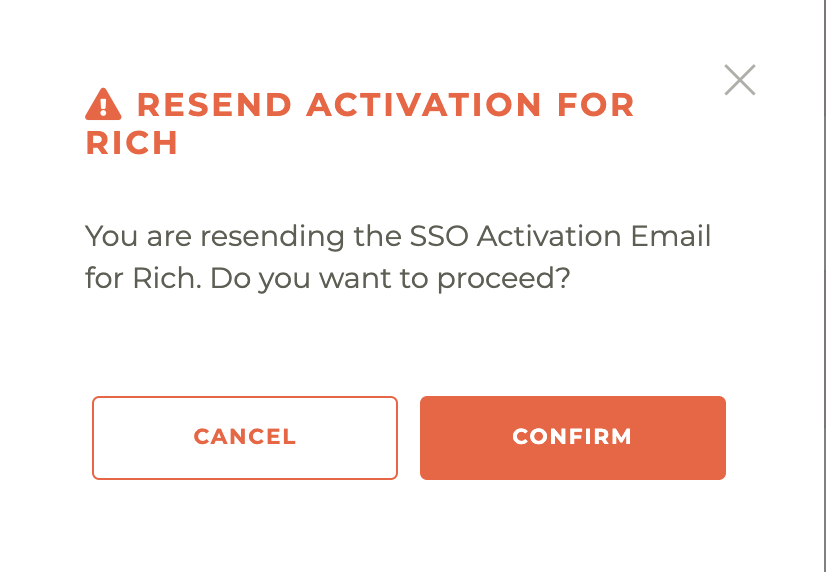
Warning: An activation email can't be unsent. There is little danger associated with this member action, however.
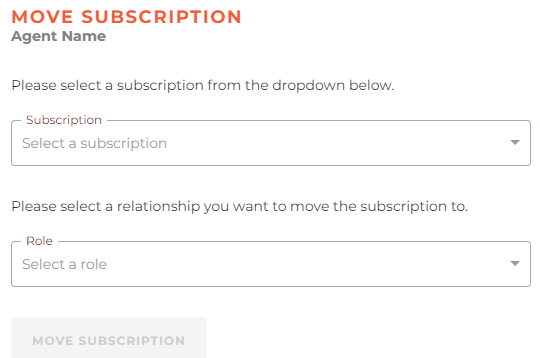
¶ Move Subscription
Use this action to update a subscription to be under a different relationship or office.
¶ Add DAL subscription
Use this action to create the data access license for an agent relationship, with a customized label to identify it.
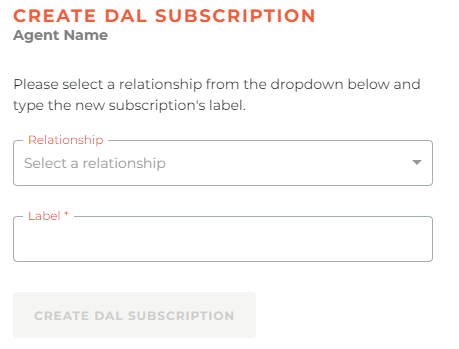
Currently this action only creates the subscription and starts charging for it on our app, it doesn't provision it on the third party tool
¶ Remove Inactive Relationship
Using this action will open a slide with a dropdown list to pick the inactive or terminated relationship.
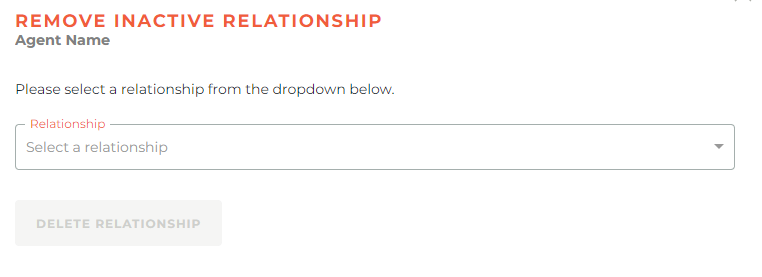
This action will only appear for agents with multiple relationships.
¶ Change Relationship Status
The Change Relationship Status member action can be used to do exactly what the name implies it allows a staff member with the correct user rights to change the relationship status on any member record.
For example, when someone has been Terminated By Broker and this has happened by accident or simply needs to be reversed so they are active again in the same office they were in before, you can use the Member Actions > Change Relationship Status > Active to do this. This change from Terminated by Broker to Active should automatically resolve the incidents as well. However, if the action does not automatically resolve the incidents, click on the incident button and resolve the incident AFTER you have executed the status change.
¶ Frequently Asked Questions
| # | Question | Answer |
|---|---|---|
| 1 | What is the purpose of the Member Actions section in Tangilla? | It allows staff with the appropriate rights to take specific actions against a person record that are difficult or impossible to manage via automated processes. |
| 2 | How do you change a member's role in Tangilla? | By selecting "Change Role," choosing the relationship and new role, confirming product decisions, and reviewing the summary before confirming. |
| 3 | What are the three steps required to complete a Change Role action? | Select New Role, Confirm Product, and Summary. |
| 4 | Can a Change Role action be undone? | Yes, but only by initiating another Change Role action. |
| 5 | What happens when a member is marked as Deceased? | The NRDS Record is updated to Deceased (X), and related workflows are triggered immediately upon confirmation. |
| 6 | Can a Member Deceased action be undone? | No, it cannot be undone, even by Tangilla staff. |
| 7 | How do you terminate a staff record in Tangilla? | Click "Terminate Staff," choose the Tangilla User Account, and confirm the action; related processes will run immediately. |
| 8 | What does the Make Member Provisional action do? | It changes the member's status to Provisional and runs associated workflows. It can be undone in the member record. |
| 9 | How do you update a license number for a member role? | Select the role, input a valid license, and Tangilla will automatically update relevant fields. Confirm the update to apply changes immediately. |
| 10 | What does the Move Subscription action do? | It updates a subscription to be under a different relationship or office. |
| 11 | How do you change a member’s office in Tangilla? | Click "Change Office," use the Office Search menu to select a new office, and confirm the change. |
| 12 | Can a Change Office action be undone? | Yes, but only by initiating another Change Office action. |
| 13 | How do you resend the SSO Activation for a member? | Click "Resend SSO Activation For Member" and confirm the warning message to immediately send the activation email. |
| 14 | Can an SSO Activation email be unsent after being sent? | No, it cannot be unsent, but it poses little risk. |
| 15 | What does the Add DAL Subscription action do? | It creates a Data Access License for an agent relationship with a custom label, but it does not provision it in the third-party tool. |
| 16 | What is the effect of the Terminate Staff action? | It updates the staff record and triggers subscription workflows immediately after confirmation. |
| 17 | What does the Confirm Product step involve in Change Role? | It resolves conflicts between old and new role-related products, allows decisions on additional charges, and is required before moving to Summary. |
| 18 | What appears in the Summary step of the Change Role action? | A complete overview of the changes, with the option to confirm or return to make edits before finalizing. |
| 19 | How do you remove an inactive relationship? | Use the "Remove Inactive Relationship" action, select from a dropdown of inactive/terminated relationships, and confirm. |
| 20 | When is the Remove Inactive Relationship option available? | Only when an agent has multiple relationships. |
| 21 | How do I change someone's NRDS or M1 number? | If a NRDS or M1 number is already assigned to a person ID, you must submit a help desk ticket to change their NRDS number. If a person does not have a NRDS number, this can be updated by editing their Association Subscription. |