¶ M1 Summary
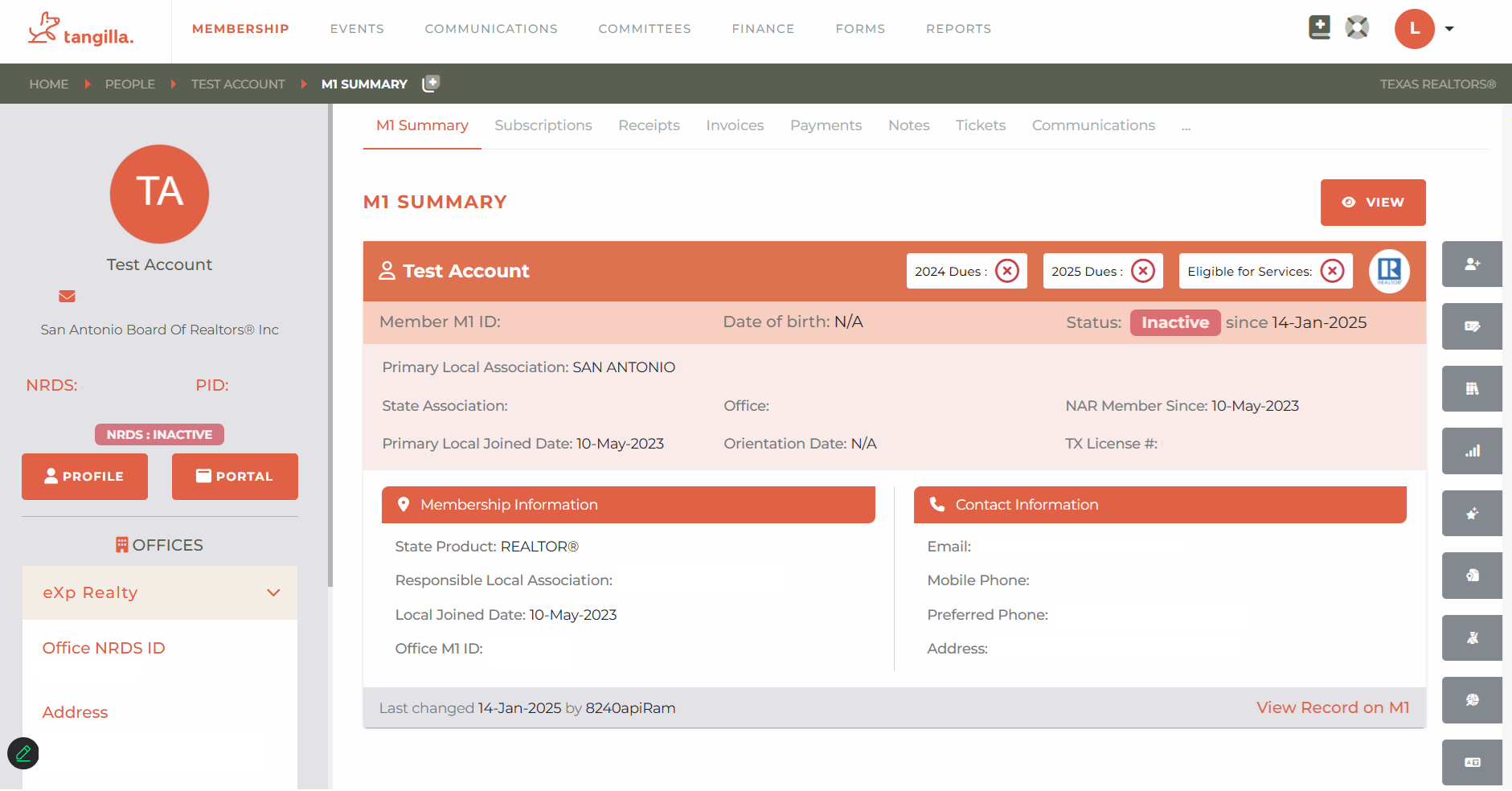
When you click into a member record from the Member Search screen in the State environment, you will land on the M1 Summary screen. In a Local Association environment, it is the second tab of the person record. This screen is designed to be a complete replication of the M1 database and contains the relevant information associated with the members M1 record. Your ability to edit any record is based on the POE rights associated with that member record.
¶ The State Association M1 Summary Display
¶ The Local Association M1 Summary Display
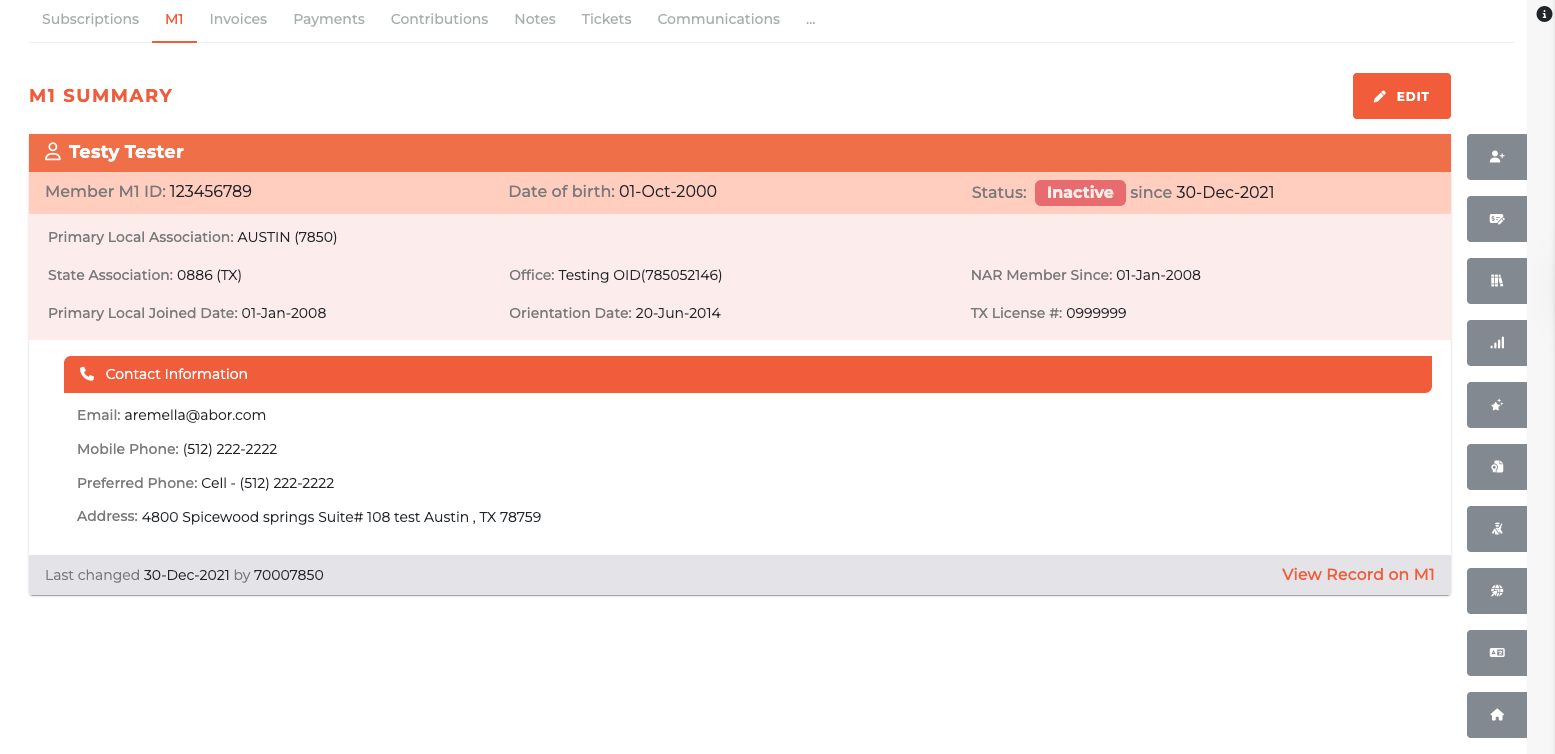
The M1 Summary screen displays a user's membership information, including their name, an optional profile picture, and their association details. On the left side, there's a profile section with the member's name and affiliation. It also shows their NRDS and PID numbers, and their status, which in this case is Inactive. There are two buttons, Profile and Portal, for navigation. A separate section for Offices lists the associated brokerage. The main part of the screen is a tabbed interface.
¶ The State Association M1 Summary
The default tab, M1 Summary, presents a summary of the member's account. Within this summary, an orange banner shows the account name and includes dropdowns for 2024 Dues and 2025 Dues, along with a checkbox labeled Eligible for Services. This section also has a View button. The main summary area is divided into two sections: Membership Information and Contact Information. The Membership Information section displays fields such as Member M1 ID, Date of birth, Status, Primary Local Association, State Association, Office, NAR Member Since, Primary Local Joined Date, Orientation Date, and TX License #. The Contact Information section includes fields for Email, Mobile Phone, Preferred Phone, and Address. The bottom of the screen indicates when the record was last changed and by whom, with a link to View Record on M1. On the right side of the screen, there's a vertical row of action icons.
¶ The Local Association M1 Summary
The M1 Summary in a Local association is the second tab in the Person Record and displays a snapshot of a member's record. In the top-right corner, a prominent EDIT button allows for modifying the member's information. The main content area begins with the member's name, followed by a section displaying key identifiers like Member MI ID, Date of birth, and the member's current Status with its effective date. Below this, a block details their association information, including Primary Local Association, Office, Primary Local Joined Date, Orientation Date, and NAR Member Since. A separate Contact Information section, identified by a phone icon, lists the member's Email, Mobile Phone, Preferred Phone, and Address. At the bottom of the page, a "Last changed" timestamp is visible, along with a View Record on M1 link. A vertical toolbar of icons (representing actions like profile, communication, office, and more) is fixed to the right side of the screen, likely providing shortcuts to other related modules.
¶ > Member Secondary

The top side tab in the M1 Summary screen is titled MEMBER SECONDARY and displays the secondary association memberships for a specific member, who is identified by name and ID at the top left. On the top right, a Search field with a magnifying glass icon allows you to filter the list, and an 'X' icon is available to close the search or the page. The main content is a grid of memberships with the following columns: Association, Office, Member Type, Sub Class, Status, and Status Date. The "Office" and "Status Date" columns feature sort icons, indicating the list can be sorted by these fields. On the far right of each row, a red circular action icon is present, which allows the user to view more details or manage that specific secondary membership record, if applicable.
¶ > Dues Payment

This screen, titled DUES PAYMENT, lists the payment history for a specific member, identified by name and ID in the top-left corner. At the top right, there is a Search field with a magnifying glass icon for filtering the list, an 'X' icon to close the page, and a red circular Add icon (with a plus sign) for creating a new manual dues payment entry. The main content is a data grid displaying payment records with the following columns: Association, Billing Year, Payment Type, Dues Paid Date, Payment Amount, and EC Control #. All columns except "Association" feature sort icons, allowing the user to reorder the list. A red circular action icon is present on the far right of each row, which allows the user to view or manage that specific payment record.
¶ > Education

This screen, titled EDUCATION, displays the education and course history for a specific member, who is identified by name and ID in the top-left corner. On the top right, there is a Search field with a magnifying glass icon, a red circular Add icon (with a plus sign) for adding a new education record, and an 'X' icon to close the page. The main content is a grid of courses with the following columns: Association, Group Code, Course Code, Course #, and Course End Date. The "Group Code," "Course Code," "Course #," and "Course End Date" columns all feature sort icons, indicating the list can be sorted by these fields. A red circular action icon is visible on the far right of each row, which allows the user to view or manage that specific course record.
¶ Adding A New Education Record
Clickin on the Circular Add Button ( ) reveals the CREATE EDUCATION tab. This is a form for adding a new education record for the member identified by name and ID. It features two tabs, Summary and Details. The form includes several fields for data entry: Group Code and Course Code are required dropdown menus, both displaying "Please select" as default text. Course Number is a required text field, also marked with a red asterisk. Optional fields include a larger text area for Course Description and a text field for Course End Date. At the bottom, there are two action buttons: SAVE and SAVE AND CLOSE . An 'X' icon in the top-right corner allows the user to close this form.
¶ > Education Level
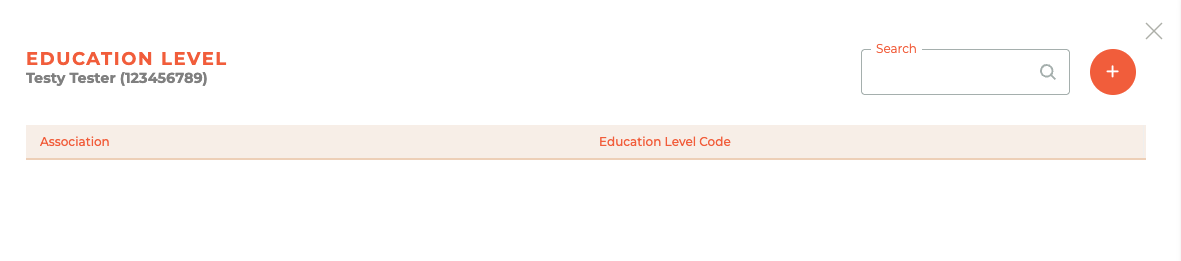
This screen, titled EDUCATION LEVEL, displays education level records for a specific member, who is identified by name and ID in the top-left corner. On the top right, there is a Search field with a magnifying glass icon for filtering, a red circular Add icon (with a plus sign) for creating a new record, and an 'X' icon to close the page. The main content area is a list grid with two columns: Association and Education Level Code.
¶ > COE (Code of Ethics)
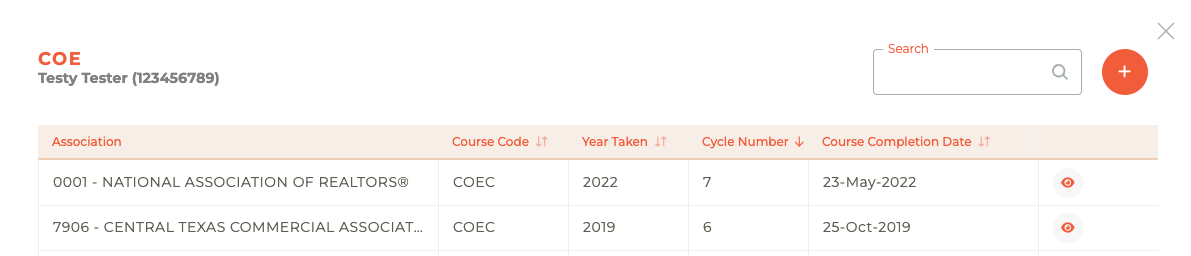
This screen, titled COE, displays the Code of Ethics training records for a specific member, who is identified by name and ID in the top-left corner. On the top right, there is a Search field with a magnifying glass icon for filtering, a red circular Add icon (with a plus sign) for creating a new Code of Ethics (COE) entry, and an 'X' icon to close the page. The main content is a data grid listing the records with the following columns: Association, Course Code, Year Taken, Cycle Number, and Course Completion Date. The "Course Code," "Year Taken," "Cycle Number," and "Course Completion Date" columns all feature sort icons, allowing the user to reorder the list. A red circular action icon is visible on the far right of each row, which allows the user to view that specific COE record. If your association created that record, an Edit icon (pencil) and a Delete icon (trash can), appear to allow for modification or removal of that specific entry.
¶ > M1 Certifications

This screen, titled M1 CERTIFICATIONS, lists the professional certifications for a specific member, who is identified by name and ID in the top-left corner. On the top right, there is a Search field with a magnifying glass icon for filtering, a red circular Add icon (with a plus sign) for creating a new certification record, and an 'X' icon to close the page. The main content is a data grid with the following columns: Association, Certification Code, Course Number, and Course Complete Date. The "Certification Code" and "Course Number" columns both feature sort icons, allowing the user to reorder the list. A red circular action icon is visible on the far right of each row, which allows the user to view or manage that specific certification.
¶ > Miltary

This screen, titled M1 MILITARIES, is used to display the military service records for a specific member, who is identified by name and ID in the top-left corner. On the top right, there is a Search field with a magnifying glass icon for filtering, a red circular Add icon (with a plus sign) for creating a new military record, and an 'X' icon to close the page. The main content area is a list grid with three columns: Association, Military Service Code, and Military Service Description. Both the "Military Service Code" and "Military Service Description" columns feature sort icons, allowing the user to reorder the list by these fields.
¶ > Demographic

This screen, titled M1 DEMOGRAPHICS, is used to display demographic information for a specific member, who is identified by name and ID in the top-left corner. On the top right, there is a Search field with a magnifying glass icon for filtering, a red circular Add icon (with a plus sign) for creating a new demographic record, and an 'X' icon to close the page. The main content area is a list grid with three columns: Association, Category, and Group Code. Both the "Category" and "Group Code" columns feature sort icons, allowing the user to reorder the list by these fields.
¶ > Languages

This screen, titled M1 LANGUAGES, is used to display the languages spoken by a specific member, who is identified by name and ID in the top-left corner. On the top right, there is a Search field with a magnifying glass icon for filtering, a red circular Add icon (with a plus sign) for adding a new language record, and an 'X' icon to close the page. The main content area is a list grid with three columns: Association, Code, and Name. Both the "Code" and "Name" columns feature sort icons, allowing the user to reorder the list by these fields.
¶ > Fair Housing

This screen, titled M1 LANGUAGES, is used to display the languages spoken by a specific member, who is identified by name and ID in the top-left corner. On the top right, there is a Search field with a magnifying glass icon for filtering, a red circular Add icon (with a plus sign) for adding a new language record, and an 'X' icon to close the page. The main content area is a list grid with three columns: Association, Code, and Name. Both the "Code" and "Name" columns feature sort icons, allowing the user to reorder the list by these fields.
This tab gives you the ability to update and create and add Fair Housing records. As long as the member is primary with your association.
On the Fair Housing screen hit the + (plus) button and you can select the only course that is allowed by NAR for boards to add and then the completion date, hit save and close and that will update at M1.
¶ Frequently Asked Questions
| # | Question | Answer |
|---|---|---|
| 1 | What is the M1 Summary screen? | A screen that replicates the M1 database and shows the relevant information associated with a member’s M1 record. |
| 2 | How do I get to the M1 Summary? | Click into a member record from the Member Search screen; you’ll land on the M1 Summary by default. |
| 3 | What controls my ability to edit a member’s record? | Your POE rights for that specific member record determine whether you can edit. |
| 4 | What basic member details appear on the left side? | The member’s name, optional profile picture, affiliation, NRDS and PID numbers, and status (e.g., Inactive). |
| 5 | Which quick navigation buttons are available? | Profile and Portal buttons are provided for navigation. |
| 6 | Where do I see the member’s brokerage or office? | In the Offices section, which lists the associated brokerage. |
| 7 | Which tab is shown by default? | The M1 Summary tab is the default tab in the interface for State Associations, and the Subscriptions tab is the default tab for Local Association environments. |
| 8 | What appears in the orange banner at the top of the summary? | The account name only in Local Association environments, and dropdowns for 2024 Dues and 2025 Dues, a checkbox labeled Eligible for Services, and a View button for State Association environments. |
| 9 | What are the two main sections in the summary area? | Membership Information and Contact Information. |
| 10 | Which fields are included under Membership Information? | Member M1 ID, Date of birth, Status, Primary Local Association, State Association, Office, NAR Member Since, Primary Local Joined Date, Orientation Date, and TX License #. |
| 11 | Which fields are included under Contact Information? | Email, Mobile Phone, Preferred Phone, and Address. |
| 12 | Where can I see audit information about changes to a record? | At the bottom, it shows when the record was last changed and by whom, with a link to View Record on M1. |
| 13 | Are there any quick action tools on the page? | Yes—there’s a vertical row of action icons on the right side. |
| 14 | Is the M1 Summary available to all clients? | It appears on any person record where the person is has an M1 ID. |
| 15 | Does the M1 Summary show a member’s status? | Yes, it displays the member’s status (example shown as Inactive). |
| 16 | What identification numbers can appear on the profile panel? | NRDS and PID numbers. |
| 17 | Is there a way to view dues information by year? | Yes, via dropdowns for 2024 Dues and 2025 Dues in the orange banner. |
| 18 | Is there a setting related to member service eligibility? | Yes, a checkbox labeled Eligible for Services appears in the orange banner. This is in the State Association environment only. |
| 19 | Where do I add a Fair Housing record? | You can add a Fair Housing course record in M1 by clicking on the Fair Housing tab, then clicking on the plus (+) button in the uppor right hand corner of that window. |
| 19 | Where do I add a Code of Ethics (COE) record? | You can add a Code of Ethics (COE) course record in M1 by clicking on the COE tab, then clicking on the plus (+) button in the uppor right hand corner of that window. |
| 20 | Where do I add an Education record? | You can add a general Education course record in M1 by clicking on the Education tab, then clicking on the plus (+) button in the uppor right hand corner of that window. |